
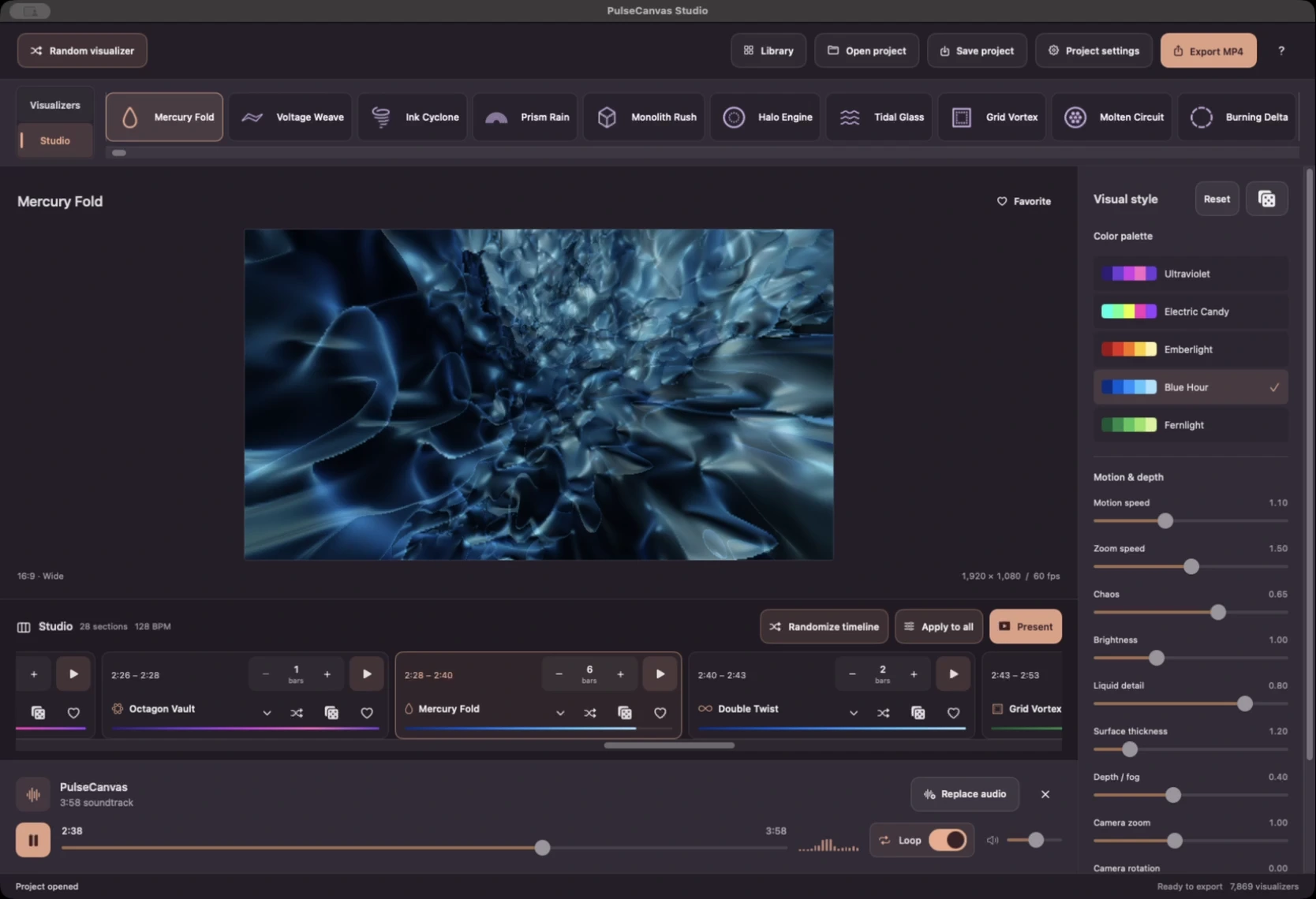
Start with the automatically detected sections
Import a soundtrack and open Studio. The app detects a beat grid and builds sections automatically. Studio starts with four bars per card, using four beats per bar. If the audio has no clear beat grid, the app uses a 120 BPM fallback; listen to the preview to check the result.
Click a card to select its section. If playback is running, that section starts playing in a loop; if paused, the playhead stays at the section’s start. The separate play button previews that section continuously, independently of the full-track Loop switch.
Choose the visualizer for each card
Click the card’s chevron to open its visualizer picker. Search, choose categories or folders, or use your heart favorites. Selecting a visualizer closes the picker. Cancel leaves the assignment unchanged.
A useful starting sequence is a quieter design for the opening, a denser design for the chorus, and a calmer return for the ending. Preview each transition with your own song; there is no automatic verse or chorus labeling.
Use bar lengths to shape the rhythm
Each card has its own Bars control. Enter a positive whole number or use minus and plus. For example, try four bars, then one, then two. Changing one length shifts the following cards along the beat grid while keeping their visualizer order. The final card may use only part of its requested length to fit the end of the song.
Sections are arranged through these controls; Studio does not use a drag-to-reorder timeline. In Apply to all, Bars per section gives every card the same count and updates the default for new cards. Leave that switch off to preserve individual lengths.
Understand which settings are shared
Visual settings are saved per visualizer. When two cards use the same design, they share its appearance settings. Changing that design’s palette or motion affects every section using it.
The card’s shuffle changes its visualizer while retaining timing. Its dice changes the current design’s saved appearance. Randomize timeline lets you randomize visualizers, bar lengths, or both. Random bar lengths range from one to eight bars; the manual Bars control accepts positive whole numbers.
Use Apply to all to share only the common settings you select, including Chaos, zoom speed, and motion speed. Controls you leave unselected retain their individual values.
Preview the whole journey and save it
Studio’s Present button plays the sequence full screen from the current playhead, following its scene changes. Space toggles playback; Escape returns to Studio with playback paused. Optional Match aspect ratio fits the image to your selected canvas shape and does not change the export settings.
Save the project to retain the individual bar lengths and styles. When you are ready, choose the export format and save the MP4. Preview and export follow the same section timing.
