
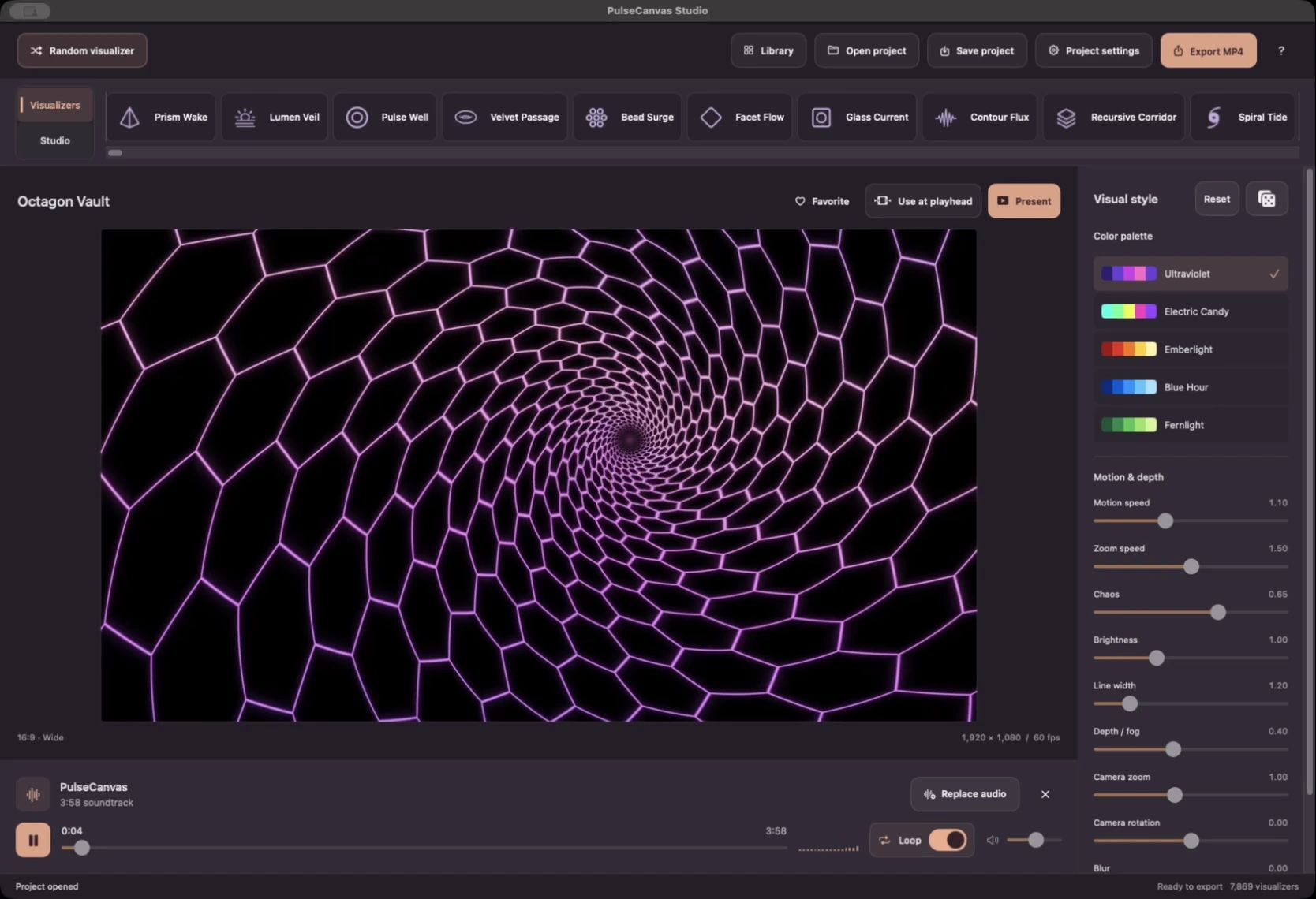
1. Bring in your soundtrack
Open PulseCanvas Studio on an Apple silicon Mac running macOS 14 or later. The bundled demo song loads paused, so you can try the workflow immediately. Choose Replace audio to select your own track.
Press Play to hear the song. Scrub the waveform to preview a particular moment, or use Loop while you try different designs. Loop changes preview playback; the export includes the full soundtrack.
2. Find a design that fits the song
Open Library to browse native visualizers in either edition, or the additional OpenGL effects in Creators Edition. Search by name, filter by category or folder, and use the heart to keep favorites close. For a consistent look, begin with one design and shape its palette, motion speed, continuous zoom, and blur.
Chaos controls how strongly the visuals respond to the music. At zero Chaos, smooth procedural animation continues without audio-driven pulses. The optional hi-hat strobe starts off, and zero Chaos suppresses its flashes.
Use Random visualizer to change the design while keeping its saved style. Use the dice to change the current design’s appearance. Saved settings belong to each visualizer.
3. Give the song a visual sequence
For a video with changing designs, open Studio. Your imported soundtrack gets automatically detected, beat-aligned sections. Assign a visualizer to each card and choose how many bars it should play. You can preview a single section in a loop before moving on.
Start with a few favorites that complement each other, then vary their lengths to suit the song. Read the Studio guide for beat-aligned sequences for timing and shared-style details.
4. Save a project, then export the video
Save project stores your visual settings, Studio timeline, and soundtrack reference in a .pulsecanvas file. Imported audio is referenced rather than embedded, so keep the original audio file available when reopening the project.
Open Project settings to choose the canvas shape, resolution, and frame rate. Choose Save video, select a destination and filename, and let the app render an H.264 MP4 with audio. Progress and a time estimate appear during export. Use Show in Finder when it finishes.
See the export format guide before choosing wide, vertical, or square output. The app saves a file that you can upload yourself.
Can I make a video without music?
Yes. Remove the soundtrack for a 15-second silent video. You can also present a single visualizer or the Studio sequence full screen without exporting.
